Editing Entities
Editing entities in Legend is straightforward. You can modify any field after creation, whether you need to update a description, add a link, change ownership, or adjust relationships.
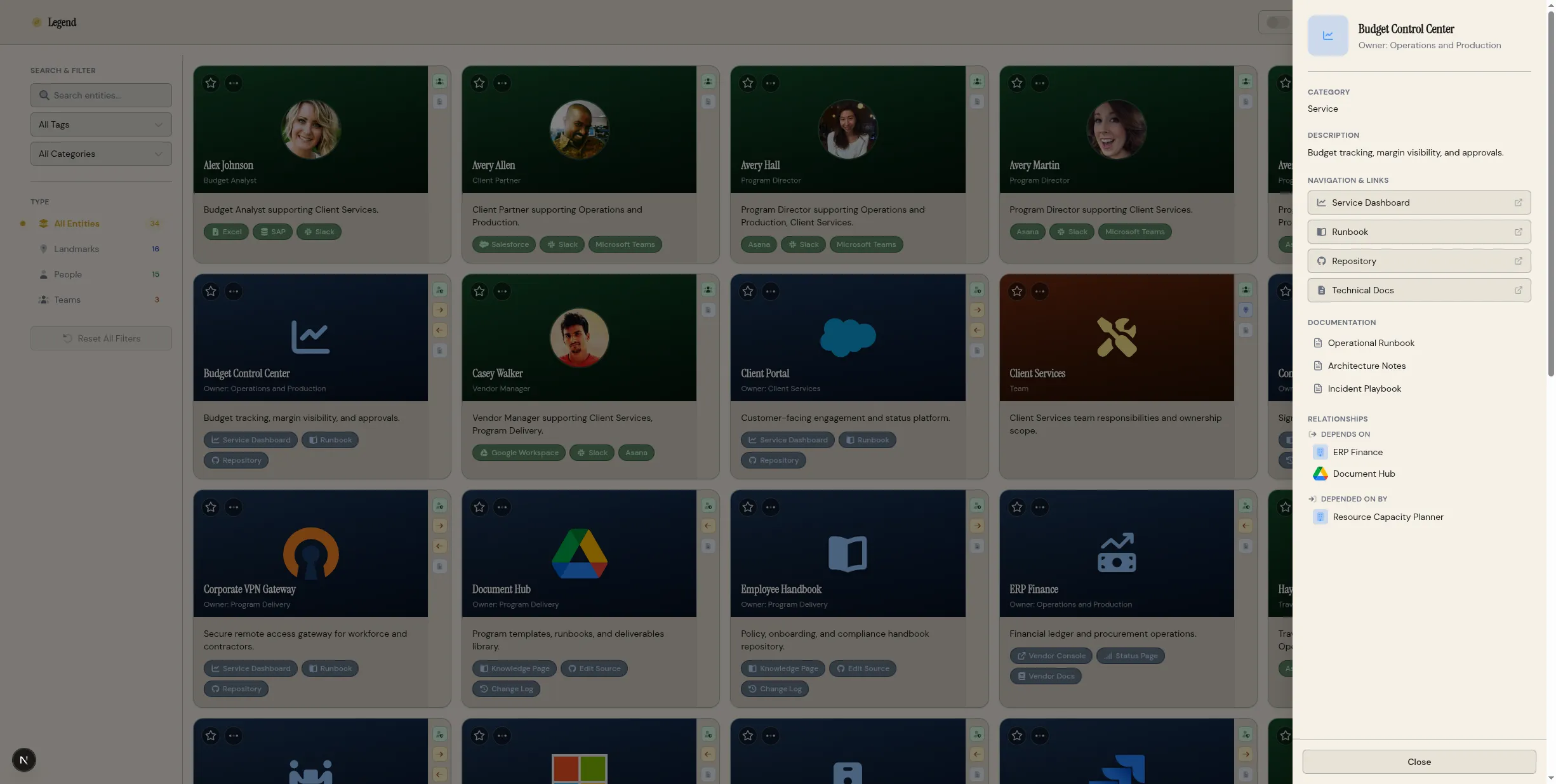
Opening the Edit Interface
Section titled “Opening the Edit Interface”There are two ways to edit an entity:
Method 1: From the Detail Drawer
- Click the entity card on the dashboard to open the detail drawer
- Click the Edit button in the top-right corner of the drawer
- The editing wizard opens with the entity’s current data pre-filled
Method 2: From the Entity Card Menu
- Hover over the entity card on the dashboard
- Click the three-dot menu icon in the top-right corner
- Select Edit from the menu
- The editing wizard opens with the entity’s current data pre-filled
Both methods open the same four-step wizard you used during creation, but with all existing data pre-populated.
The Editing Wizard
Section titled “The Editing Wizard”The editing wizard has the same four steps as the creation wizard:
Step 1: Details
Section titled “Step 1: Details”Update the core information about your entity:
- Name, description, category (for landmarks)
- Icon, owner, email, title, teams (depending on entity type)
All fields are pre-filled with current values. Modify any field and click Next to continue.
Step 2: Links
Section titled “Step 2: Links”Add, remove, or modify quick-access links:
- Update existing link titles, URLs, or icons
- Add new links by clicking Add Link
- Remove links by clicking the trash icon next to each link
Links are saved in the order you arrange them. The first link appears most prominently on the entity card.
Step 3: Documentation
Section titled “Step 3: Documentation”Edit existing documentation or add new files:
- Click a documentation tab to edit that file
- Add new documentation by clicking Add Documentation
- Remove documentation by clicking the trash icon
Documentation is stored as markdown files and supports full markdown syntax.
Step 4: Organization
Section titled “Step 4: Organization”Update tags, relationships, and access control:
- Add or remove tags
- Modify dependencies and relationships (for landmarks)
- Adjust access groups and edit groups
Click Save to apply all changes.
Editing Specific Fields
Section titled “Editing Specific Fields”Updating the Description
Section titled “Updating the Description”To update an entity’s description:
- Open the detail drawer
- Click Edit
- In Step 1, modify the Description field
- Click Next through the remaining steps (or click Save if available)
- The updated description appears on the entity card immediately
Changing Ownership
Section titled “Changing Ownership”To transfer ownership of a landmark:
- Open the landmark’s detail drawer
- Click Edit
- In Step 1, change the Owner field to a different team or person
- Complete the wizard and save
- The ownership change is reflected on the landmark card and in the topology
Adding or Removing Team Memberships
Section titled “Adding or Removing Team Memberships”To update a person’s team memberships:
- Open the person’s detail drawer
- Click Edit
- In Step 1, modify the Teams field
- Select additional teams or deselect current teams
- Complete the wizard and save
- The person’s card updates to show the new team count
Modifying Relationships
Section titled “Modifying Relationships”To add or remove dependencies and associations:
- Open the landmark’s detail drawer
- Click the Relationships tab
- Click Add Relationship to create a new relationship
- Select the relationship type (depends on, related to)
- Search for and select the target entity
- Click Save
To remove a relationship:
- Open the Relationships tab
- Find the relationship you want to remove
- Click the trash icon next to the relationship
- Confirm the deletion
Editing Documentation
Section titled “Editing Documentation”To modify documentation files:
- Open the entity’s detail drawer
- Click the Docs tab
- Click the documentation file you want to edit
- Modify the markdown content
- Click Save to apply changes
Documentation changes are saved immediately and are searchable.
Bulk Editing
Section titled “Bulk Editing”Legend does not currently support bulk editing of multiple entities at once. To update multiple entities, you must edit each one individually.
Workaround for bulk updates: If you need to update a field across many entities (for example, adding a tag to all production services), you can:
- Edit the YAML files directly in the data directory
- Use a text editor or script to make the changes
- Restart the Legend container to reload the data
Edit Permissions
Section titled “Edit Permissions”Who can edit an entity depends on your user role and the entity’s access control settings:
Administrators:
- Can edit all entities regardless of access control settings
Users with Edit Groups:
- Can edit entities where they belong to an edit group
- Edit groups are configured in Step 4 of the editing wizard
Regular Users:
- Can edit entities they have access to (based on access groups)
- Cannot edit entities with restricted edit groups they don’t belong to
If you cannot edit an entity, the Edit button will not appear in the detail drawer. Contact your administrator to request edit permissions.
Saving Changes
Section titled “Saving Changes”When you click Save in the editing wizard:
- All changes are validated
- The entity’s YAML file is updated
- The audit log records the change
- The entity card refreshes to show updated data
- Relationships are recalculated in the topology
If validation fails (for example, a required field is missing), the wizard displays an error message and prevents saving. Correct the error and try again.
Undoing Changes
Section titled “Undoing Changes”Legend does not have an undo feature for entity edits. If you make a mistake:
- Open the entity’s detail drawer
- Click Edit
- Manually revert the changes
- Save the entity
For critical data, consider creating a backup before making significant changes. See Backups and Recovery for details.
Best Practices for Editing
Section titled “Best Practices for Editing”Edit incrementally:
- Make small, focused changes rather than large overhauls
- Test changes by viewing the entity card and detail drawer after saving
- Use the topology explorer to verify relationship changes
Document significant changes:
- If you change ownership, add a note in the documentation
- If you modify dependencies, update the runbook if applicable
- If you change access control, notify affected users
Review before saving:
- Click through all wizard steps to review changes
- Verify that links still work after URL changes
- Check that relationships make sense in the topology
Use version control:
- If you’re comfortable with YAML, use Git to track changes
- Commit changes with descriptive messages
- Use Git history to review what changed and when