Search and Discovery
Legend’s search is designed to help you find not just what you’re looking for, but also what’s connected to it. The search engine is relationship-aware, meaning it finds related entities and documentation, not just direct text matches.
The Search Box
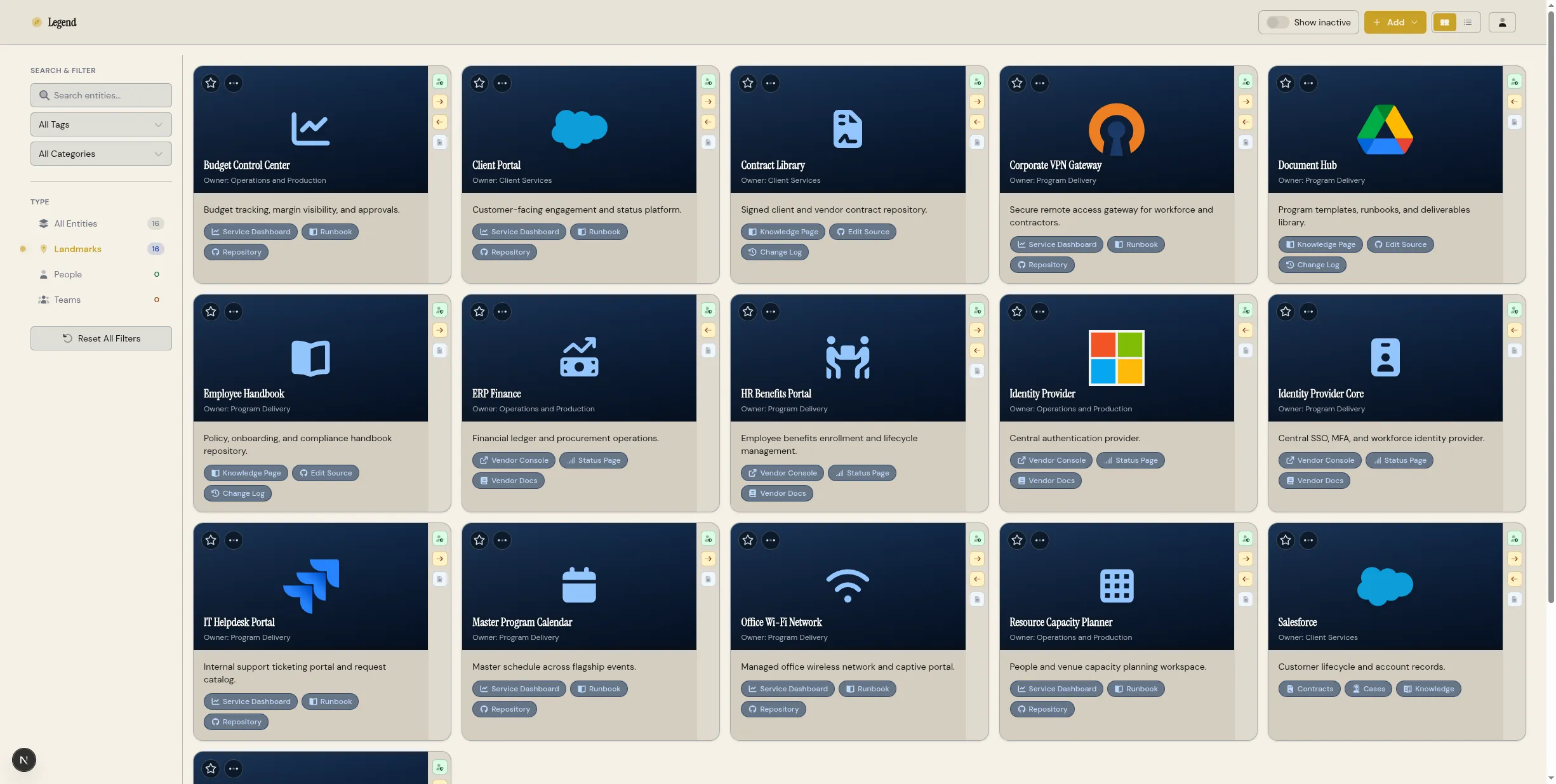
Section titled “The Search Box”The search box is located in the top-left corner of the dashboard, under the “Search & Filter” heading.
To perform a search:
- Click in the search box
- Type at least 3 characters
- Results appear automatically as you type
The minimum 3-character requirement ensures that searches are specific enough to return meaningful results.
What Search Covers
Section titled “What Search Covers”Legend searches across multiple fields for each entity:
- Name: The entity’s display name
- Description: The entity’s summary or description
- Tags: Any tags assigned to the entity
- Categories: The entity’s category (for landmarks)
- Documentation: Content within attached markdown documentation files
When a match is found, the search results indicate which field matched (e.g., “matched in name”, “matched in documentation”).
Relationship-Aware Results
Section titled “Relationship-Aware Results”Unlike simple text search, Legend’s search understands relationships. When you search for an entity, the results also include entities that are connected to it through:
- Dependencies: Landmarks that depend on or are depended upon by the match
- Associations: Landmarks that are related to the match
- Ownership: Teams or people that own the matched landmark
- Membership: People who belong to a matched team
This means if you search for “Billing API”, you’ll not only find the Billing API itself, but also the teams that own it, the services that depend on it, and the people working on related projects.
Filtering Results
Section titled “Filtering Results”The sidebar provides powerful filtering options to narrow your search:
Type Filters:
- All Entities
- Landmarks
- People
- Teams
Click a type filter to show only entities of that kind. The count next to each type shows how many matches were found.
Tag Filters:
- Click “All Tags” to open the tag filter dropdown
- Select one or more tags to filter results
- Only entities with the selected tags will be shown
Category Filters:
- Click “All Categories” to open the category filter dropdown
- Select one or more categories to filter results
- Only landmarks with the selected categories will be shown
You can combine type, tag, and category filters to create precise queries. For example, you can search for “database” and filter to show only landmarks in the “resource” category with the “production” tag.
Document Search
Section titled “Document Search”When your search term matches content within an entity’s documentation, the search results show:
- The entity name
- The documentation file title
- A snippet of the matching content with context
This makes it easy to find specific information within runbooks, architecture notes, or other attached documentation without having to open each entity individually.
Best Practices for Effective Search
Section titled “Best Practices for Effective Search”Use specific terms:
- Instead of searching for “service”, search for “billing” or “auth”
- Specific terms return more relevant results
Leverage tags and categories:
- If you know the tag or category, use the filters to narrow results
- This is faster than scrolling through many search results
Search for related items:
- If you’re looking for a team, search for a service they own
- The relationship-aware search will surface the team in the results
Use filters to explore:
- Even without a search term, you can use type, tag, and category filters to browse entities
- This is useful for exploring what’s in your Legend instance
Resetting Filters
Section titled “Resetting Filters”To clear all filters and return to the full entity list:
- Click the “Reset All Filters” button in the sidebar
- Or clear the search box
The entity count in the type filters updates automatically to reflect the current filtered view.