First Steps with Legend
After installing Legend, you complete two wizards: the setup wizard creates your administrator account, and the onboarding wizard helps you populate Legend with initial data.
Setup Wizard
Section titled “Setup Wizard”On first visit to your Legend instance, you are automatically redirected to the setup wizard at /setup. This wizard creates the initial administrator account and configures your organization.
-
Enter your name: Provide your first and last name. This information is used for your administrator profile.
-
Enter your organization name: This name appears throughout the Legend interface and in communications. Choose a name that represents your team or company.
-
Enter your admin email: This email address is used for authentication and notifications. Use an email address you will remember, as this is your primary administrator account.
-
Create a password: Your password must meet these requirements:
- At least 12 characters long
- Contains at least one uppercase letter (A-Z)
- Contains at least one lowercase letter (a-z)
- Contains at least one number (0-9)
-
Confirm your password: Re-enter your password to ensure accuracy.
-
Click Complete Setup: Legend creates your administrator account, initializes the database, and redirects you to the main dashboard.
What Happens During Setup
Section titled “What Happens During Setup”When you complete the setup wizard, Legend:
- Creates the administrator user account with full privileges
- Initializes the SQLite database with system tables
- Creates default user groups (Admins, Users, Editors)
- Sets the organization name in system configuration
- Disables self-registration by default (you can enable it later in Admin Settings)
- Enables anonymous telemetry (you can disable it in Admin Settings)
- Creates a session cookie for immediate access
You are now logged in as the administrator and can access all admin features.
Onboarding Wizard
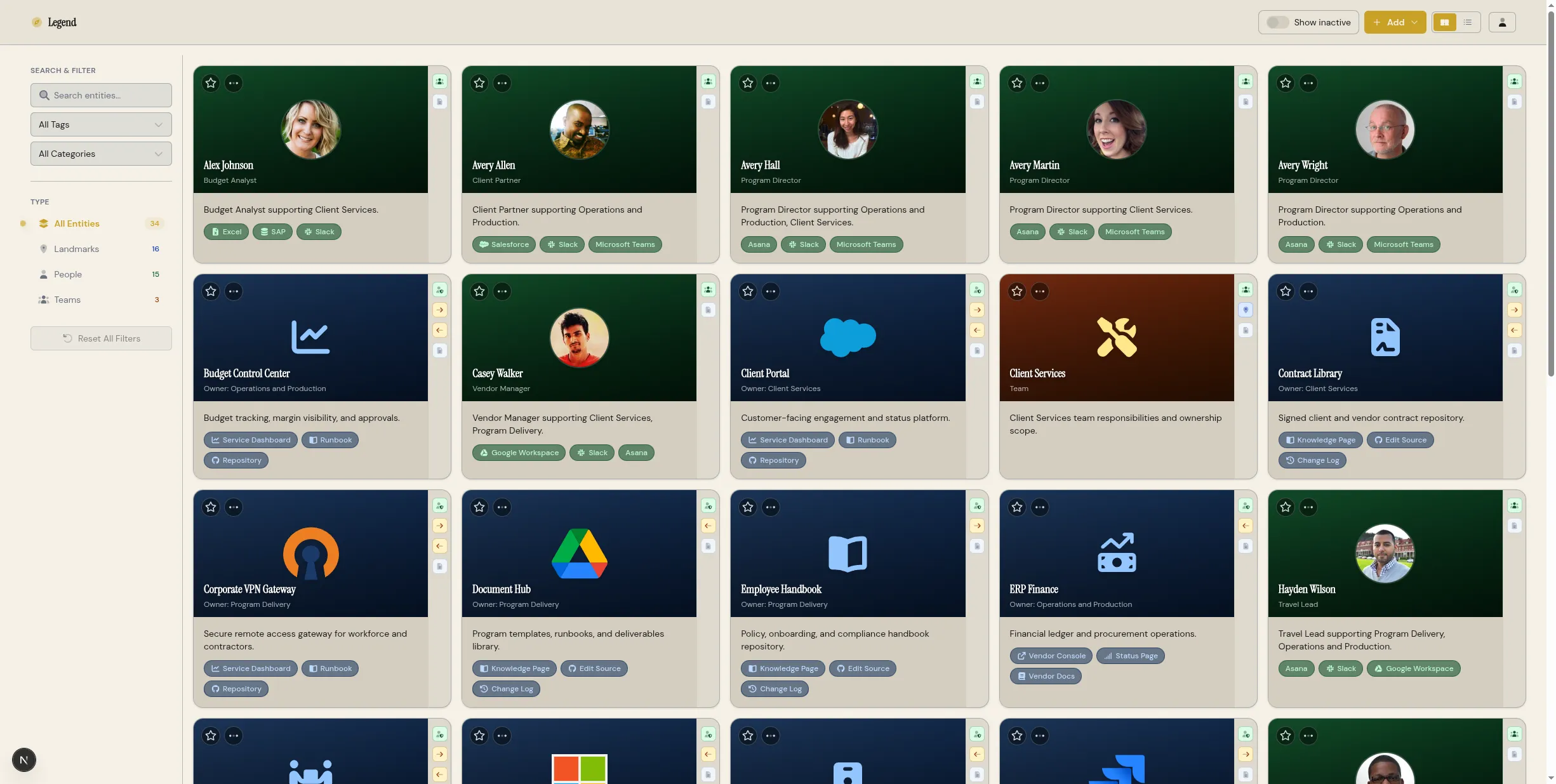
Section titled “Onboarding Wizard”After completing the setup wizard, the onboarding wizard appears on your first visit to the dashboard. This wizard helps you populate Legend with demo data and common services so you can explore features immediately.
The onboarding wizard has three steps:
Step 1: Create Demo Entities
Section titled “Step 1: Create Demo Entities”The first step offers to create a set of demo entities that showcase Legend’s capabilities. These demo entities include:
- Sample landmarks (services, projects, resources)
- Example teams and people
- Relationship connections between entities
- Documentation files attached to entities
To create demo entities:
- Click the “Create Demo Entities” button in the onboarding wizard.
- Legend generates a complete set of sample data.
- The dashboard refreshes to show the demo entities.
To skip this step:
Click “Skip” to proceed without creating demo entities. You can create your own entities manually or use the quick-add feature in the next step.
Step 2: Quick-Add Common Services
Section titled “Step 2: Quick-Add Common Services”The second step offers a quick way to add common services and tools that many organizations use. This feature creates landmark entities with pre-configured icons and links.
Available quick-add services include:
- Development tools: GitHub, GitLab, Jira, Confluence
- Communication: Slack, Microsoft Teams, Discord
- Cloud services: AWS Console, Google Cloud, Azure Portal
- Monitoring: Grafana, Datadog, PagerDuty
- Documentation: Notion, Confluence, Google Docs
To use quick-add:
- Browse the list of available services.
- Select the services your organization uses by clicking the checkboxes.
- Click “Add Selected Services”.
- Legend creates landmark entities for each selected service.
To skip this step:
Click “Skip” to proceed without adding any services. You can add services manually at any time using the “Add Entity” button on the dashboard.
Step 3: Explore Features
Section titled “Step 3: Explore Features”The final step highlights key features you should explore:
-
Search: Use the search box to find entities by name, description, tags, or documentation content. Search is relationship-aware and finds connected entities.
-
Filters: Filter entities by type (landmarks, people, teams), tags, or categories using the sidebar controls.
-
Entity cards: Click any entity card to open the detail drawer, which shows full information, relationships, links, and documentation.
-
Topology explorer: Click the “Explore” button on any entity to visualize its relationships in an interactive graph. Navigate through dependencies, ownership, and team memberships.
-
Admin panel: Access the admin panel from the user menu to manage users, groups, categories, tags, branding, and system settings.
To complete onboarding:
Click “Finish” or “Mark as Complete”. The onboarding wizard will not appear again. You can reset onboarding through the admin panel if you want to run through it again.
After Onboarding
Section titled “After Onboarding”After completing both wizards, you have a working Legend instance with:
- An administrator account with full access
- Optional demo entities showcasing the data model
- Optional quick-add services for common tools
- Familiarity with core features and navigation
Recommended Next Steps
Section titled “Recommended Next Steps”-
Create your first real entities: Add landmarks for your actual services, projects, and resources. See the Working with Entities guide.
-
Add team members: Create person entities for your team and assign them to teams. See People and Teams.
-
Define relationships: Connect your entities with dependencies and ownership relationships. See Relationships.
-
Invite users: If you want other people to access Legend, create user accounts in the admin panel. See User Management.
-
Configure categories and tags: Set up categories and tags that match your organization’s structure. See Categories and Tags.
-
Apply a license: If you have a Starter, Professional, or Business license, apply it to unlock additional features. See License Management.
Troubleshooting Setup Issues
Section titled “Troubleshooting Setup Issues”Setup Wizard Does Not Appear
Section titled “Setup Wizard Does Not Appear”If you visit Legend but the setup wizard does not appear, it means the system has already been initialized. This can happen if:
- You completed setup in a previous session
- Another user completed setup
- The database was pre-populated
To reset and run setup again, you must delete the SQLite database file (legend.db) in your data directory and restart the container.
Password Requirements Not Met
Section titled “Password Requirements Not Met”If the setup wizard rejects your password, check that it meets all requirements:
- At least 12 characters (not 8, not 10, but 12)
- At least one uppercase letter (A through Z)
- At least one lowercase letter (a through z)
- At least one number (0 through 9)
Special characters are allowed but not required. The password is case-sensitive.
Cannot Access Admin Features
Section titled “Cannot Access Admin Features”After setup, if you cannot access admin features (User Management, Settings, etc.), verify that you are logged in as the administrator account created during setup. Check the user menu in the top-right corner to see your email address.
If you need to verify your account has admin privileges, check the admin panel’s User Management page. The administrator account created during setup is automatically added to the Admins group.